Getting Started
Holobiont AI runs in your browser at dashboard.holobiont.io . There is nothing to install.
Getting an account
Accounts belong to a company. There are two ways to get one:
- Sign up yourself: create an account and set up a new company. You become the company’s leader. See Creating an account below.
- Get added by a leader: a leader of an existing company adds you under My Company → Users. If they choose to send an invitation, you get an email with a link: open it, set your password and you’re in.
If you were added without an invitation email, use Login with Magic Link or Forgot Password? on the sign-in page the first time.
Creating an account
- Go to dashboard.holobiont.io and click Create an account on the sign-in page (or open
/signup). - Enter your first name, last name, email and a password (at least 8 characters), and tick the box to accept the Terms of Service and Privacy Policy.
- Click Create account. You get an email, “Verify Your Email - Holobiont AI”, with a link that is valid for 24 hours. No account exists until you open the link.
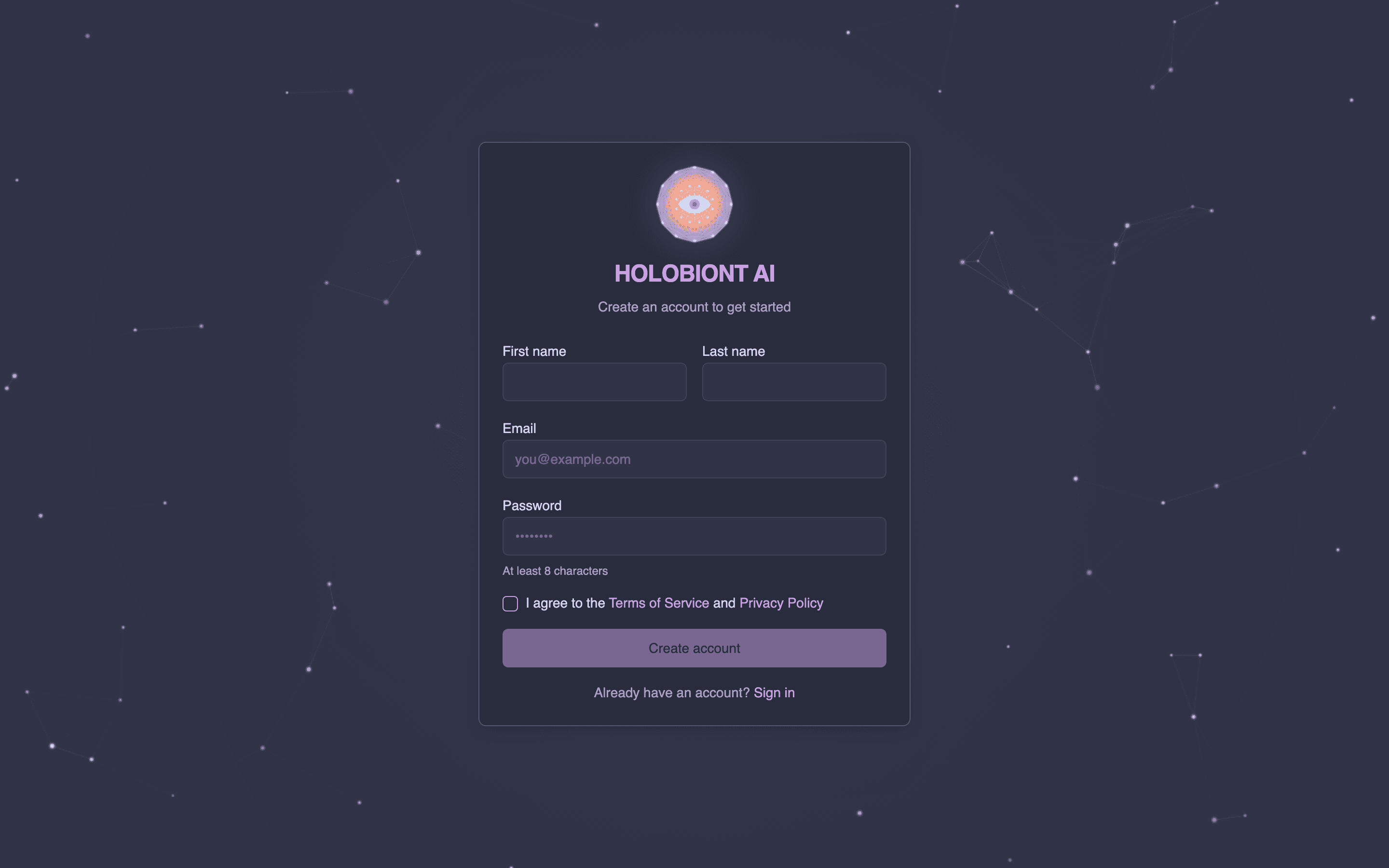
If the address already has an account, you see the same “check your email” message, but the email you get says “You Already Have an Account” and points you to the sign-in page. So it’s safe to try.
Opening the link signs you in and opens Set up your company:
- Company name, Country, Address line 1 (and 2), City, Postal code and State/Province
- VAT ID (EU), optional. When you leave the field, the number is checked against the EU VIES service: a green note shows the company name registered for it when it’s valid, an amber note if VIES didn’t answer or the number isn’t valid. The company is created either way.
- Billing contact name and Billing email (pre-filled with your email)
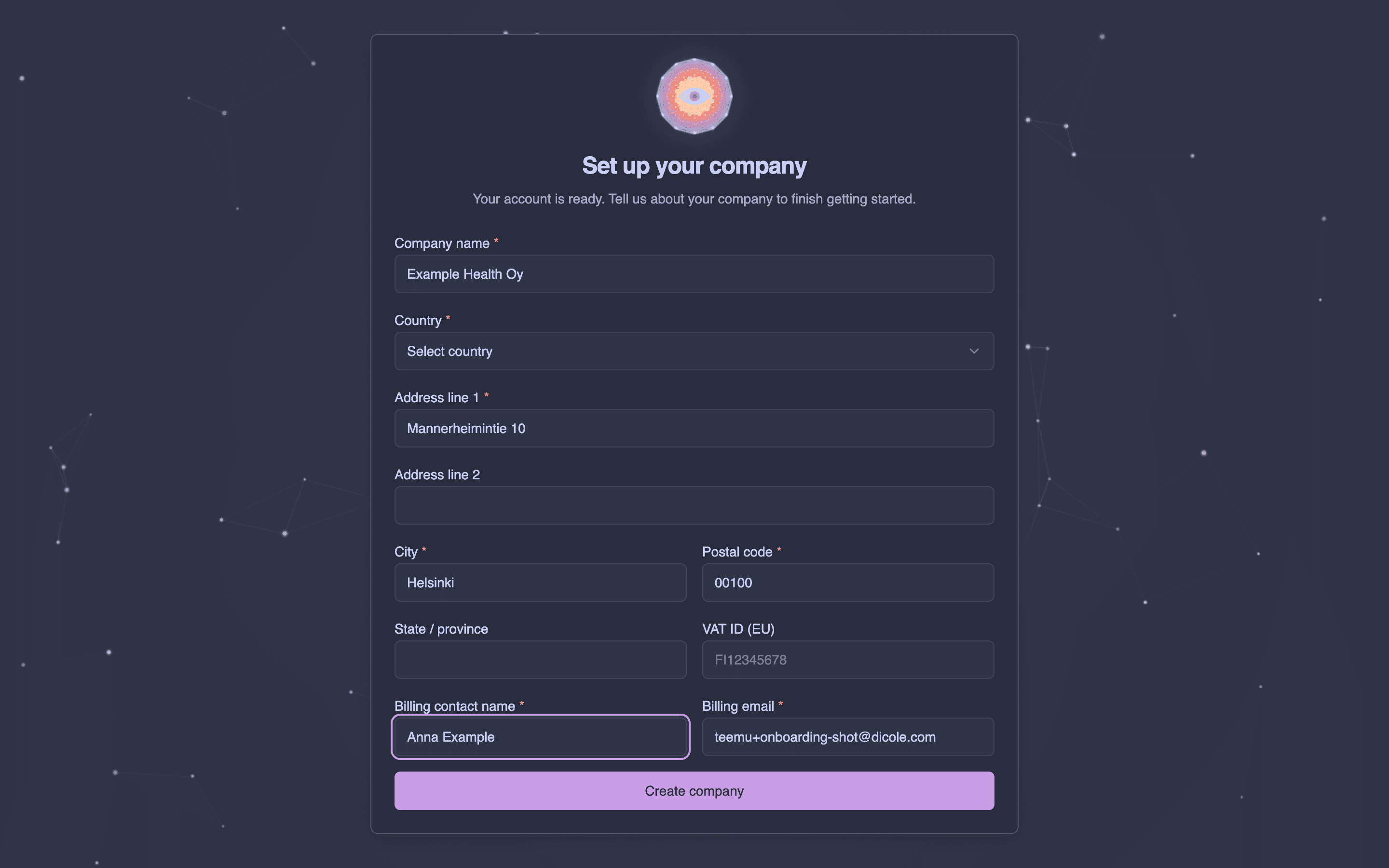
Click Create company. The company is created with you as its leader. A second step asks what you plan to build (a few sentences; a project website is optional): sending it asks for the 5,00 € welcome credit, which we approve usually within a working day and confirm by email (see Before you start: credits). Choose I don’t need free credit to skip it; you can buy credits right away either way.
Signing in
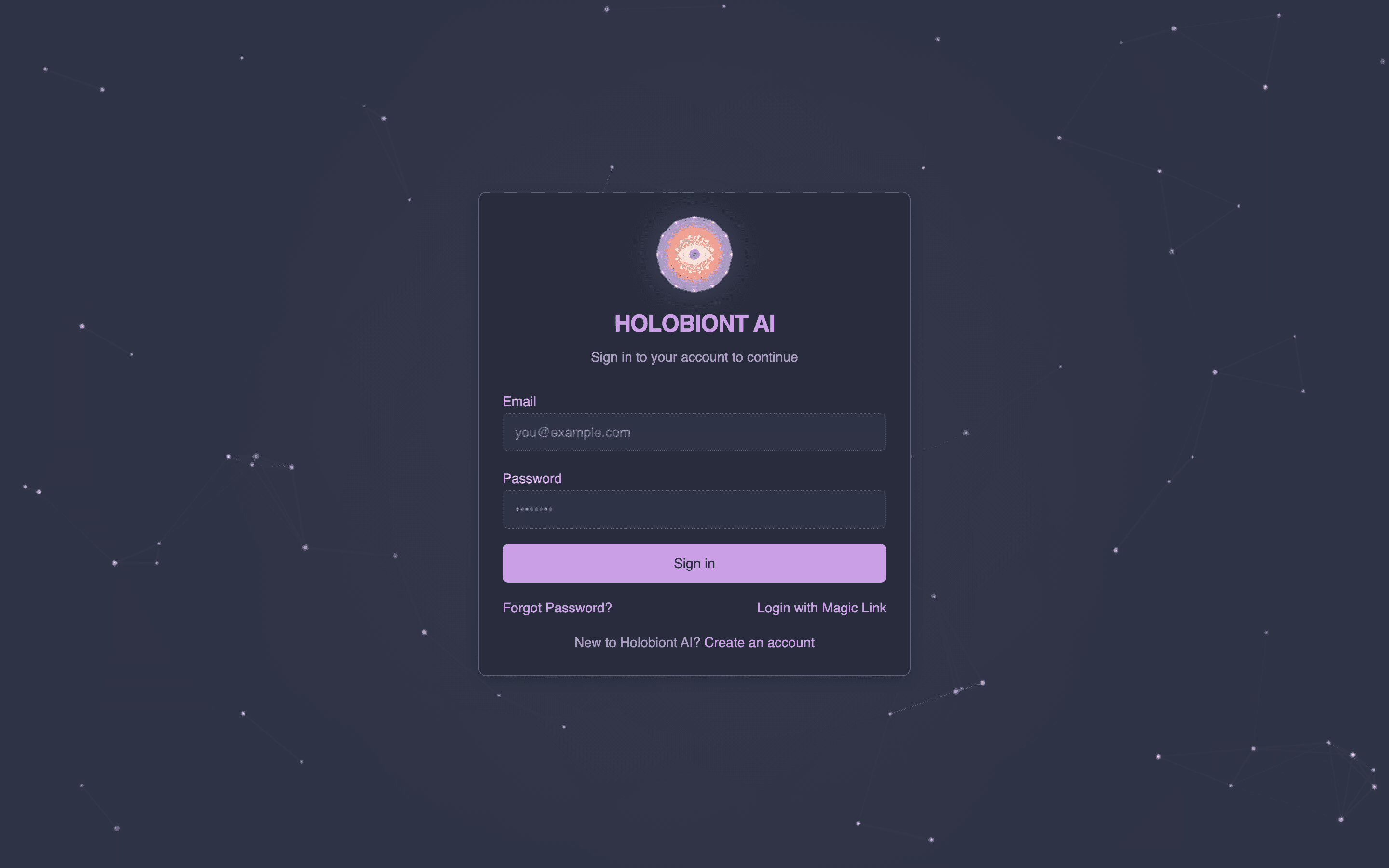
- Go to dashboard.holobiont.io .
- Enter your email and password and click Sign in.
- If two-factor authentication (2FA) is on for your account, enter the 6-digit code from your authenticator app. You can use one of your backup codes instead.
Other ways in:
- Login with Magic Link: get a one-time sign-in link by email instead of typing a password. (Accounts with 2FA sign in with password and code.)
- Forgot Password?: get a reset link by email and choose a new password (at least 8 characters).
A company can require 2FA for all its users. If yours does and you haven’t set it up, you’ll be asked to scan a QR code with an authenticator app the next time you sign in. Keep the backup codes somewhere safe.
Finding your way around
The sidebar on the right side of the screen groups the sections:
| Group | Item | What it’s for |
|---|---|---|
| Workspace | Dashboard | Your usage at a glance and your company’s credit balance |
| Chat | Ask the AI questions, attach files and images | |
| Library | Biomarkers | Your company’s biomarker catalog |
| Supplements | Your company’s supplement catalog | |
| Food | Analyze meal photos | |
| Configure | AI Settings | How the AI behaves: agents, models, memory, tone |
| Usage | Detailed usage charts and records | |
| Account | My Company | Company details, users, billing, credits and API keys |
| Profile | Your name, password and 2FA | |
| Documentation | These docs |
At the bottom of the sidebar are Sign out and links to the Privacy Policy and Terms of Service.
What you see depends on your role. If a feature isn’t available for your account, its sidebar item shows a lock and the page says so, with a Contact us link. Platform administrators also see an Administration group with Admin, Documents (the shared document library) and Graph (the knowledge graph). Everyone uses the library’s documents through Chat.
On a phone, tap the menu button at the top of the screen to open the sidebar.
Your dashboard
The dashboard shows cards you can click through:
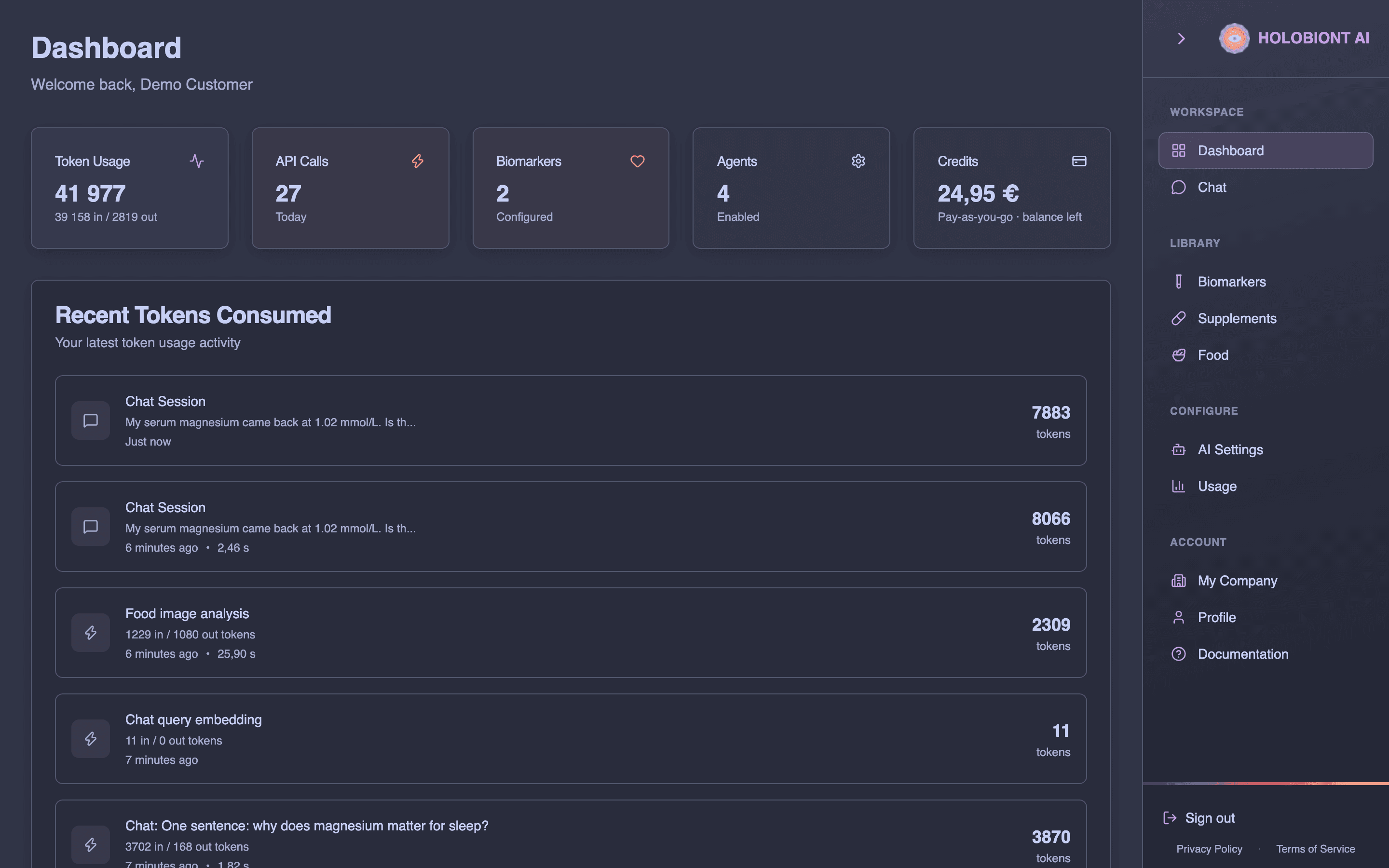
- Token Usage: tokens used, split into input and output
- API Calls: AI calls made today
- Biomarkers: biomarkers in your catalog
- Agents: AI agents switched on in AI Settings
- Credits: the credits your company has left (for example 24,97 €), with Pay-as-you-go · balance left underneath. Click it to open My Company → Credits. When the balance is 0, the card shows Out of credits in red and a banner at the top of the dashboard says that Chat, Food and the API are paused until credits are added, with a Buy credits button.
Below the cards, Recent Tokens Consumed lists your latest chats and other AI operations with their token counts.
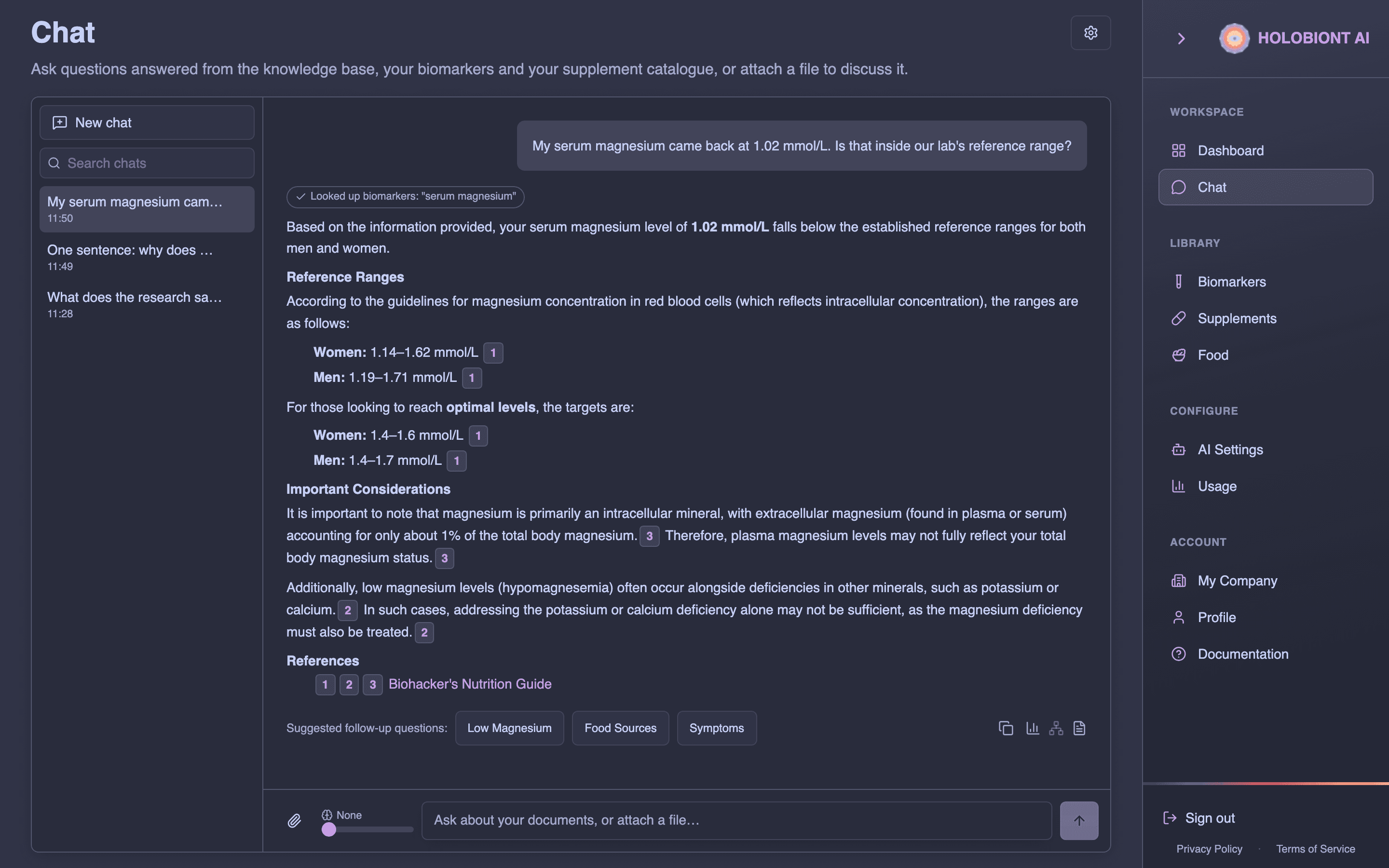
Your first chat
- Click Chat.
- Type a question and press Enter (or click Send).
- To ask about a file, attach it with the paperclip: images, PDFs, spreadsheets and documents work (see AI Chat).
- Use the suggested follow-up questions under an answer to dig deeper.
Your conversations are listed on the side. Start a new one with New chat, or search earlier ones with Search chats. See AI Chat for more.
Specific questions get better answers than broad topics.
Before you start: credits
Every AI feature (chat, Food, AI imports) is paid from your company’s prepaid credits, in euros. There is no monthly fee. Every new company gets a one-time 5,00 € welcome credit once we have approved its registration (usually within a working day; you get an email); it appears as Welcome credit in the Activity list under My Company → Credits. When it’s used up, a company leader buys credits there (25 €, 100 €, 500 € or any amount from 25 €), optionally with auto-recharge. Credits never expire.
If the balance reaches zero, AI features pause until credits are added. See Pricing.
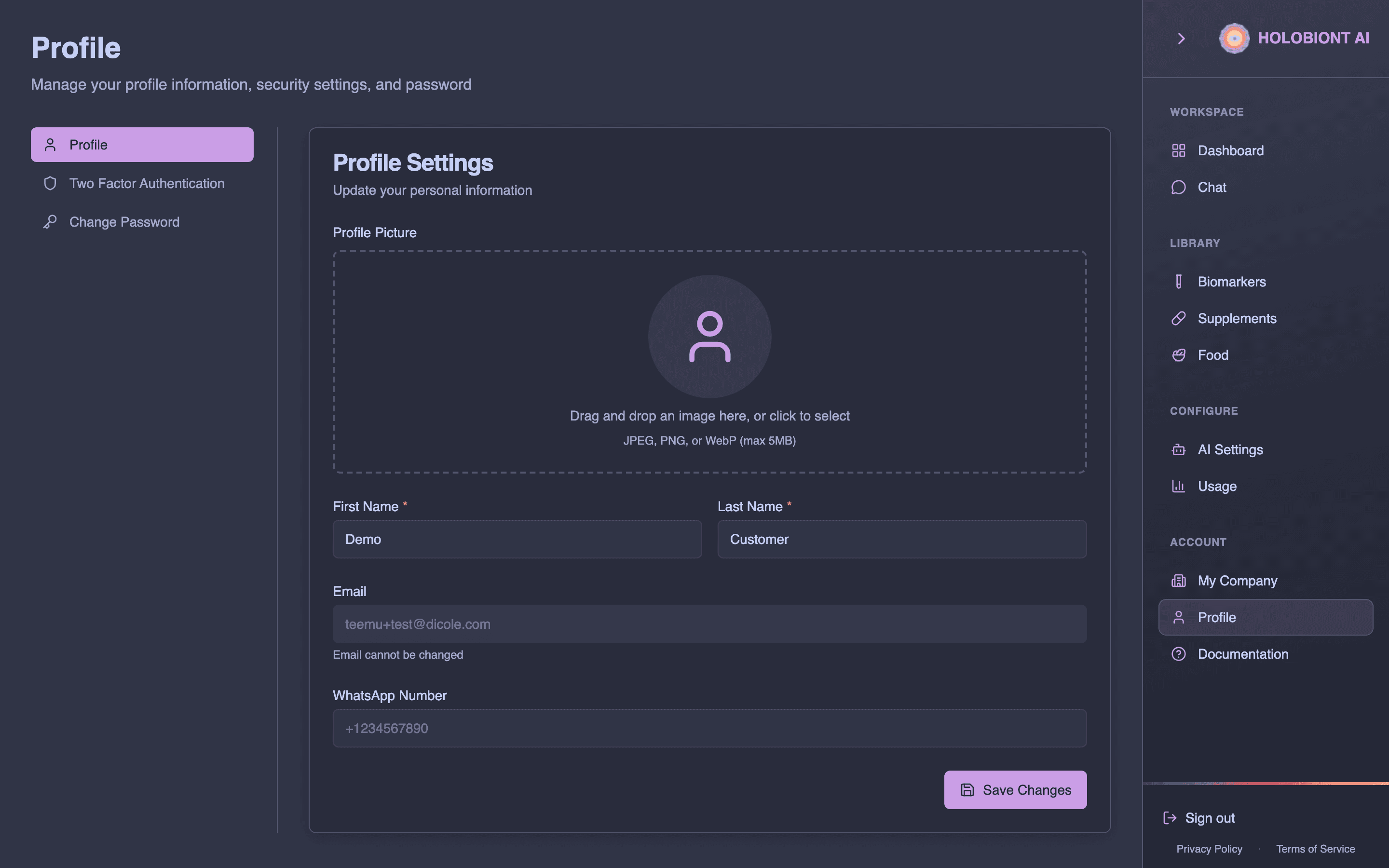
Your profile
Profile under Account in the sidebar is about you, not your company. It has three sections: Profile Settings (profile picture, first and last name, email and WhatsApp number), Two Factor Authentication and Change Password.
Next steps
- Features Overview: a tour of every section
- AI Chat: get more out of chat
- My Company: company details, users and credits
- Pricing: Pay-as-you-go and credits
- FAQ